
Written by: Ben Adams | September 13, 2026 |
You have a launch date you can’t move, a development team of two or three, and a memory of the last site move that still makes you wince. This SEO site migration checklist is built for that. A site migration is any change that moves your pages to new URLs, whether that’s a new domain, a new URL structure, a move to HTTPS, or a new content management system. Three phases, in order, with a named owner on every item and a sequence to follow if traffic falls.
Work it as three lists. What has to be finished before anything ships, what happens on the day, and what you watch afterward. In my experience, site migration SEO fails on ownership more often than on technique, so treat the owner in parentheses as part of the item.
The short version
- Work the move as three lists in order: what has to be finished before you ship, what happens on the day, and what you watch afterward.
- Put a person’s name against every item. Not a team, a person, and tell them.
- The 301 redirect map carries the most risk. Map every old URL to one new URL, never to the homepage, and have a second person check your top fifty rows.
- Ask your developer whether the new platform sends finished HTML or builds the page in the browser. A rendering problem looks perfect to you and close to empty to a crawler.
- Agree in writing, before launch, what would send you back to the old site and who makes that call. Keep the 301s live for at least a year, which is the window Google states.
Which kind of migration you’re running
There are four, and they carry different amounts of risk. Moving to a new domain. Changing the URL structure on the same domain. Moving to HTTPS, or between www and non-www. Replatforming to a new CMS. Name yours first, because it decides how much of what follows applies to you.
| Type of move | What changes | How much of this list applies | Change of Address? |
|---|---|---|---|
| Moving to a new domain | Every URL changes at once | All of it | Yes |
| URL structure on the same domain | Same domain, new paths | Most of it; the domain keeps its history | No |
| HTTPS, or www to non-www | Only the address, not the pages | Crawl for mixed content, canonicals and sitemap | No |
| Replatforming to a new CMS | Templates, URL patterns and rendering | Most of it; watch the platform defaults | No |
Moving to a new domain
The heaviest of the four.
Every URL changes at once, the redirect map carries all of the weight, and everything below applies. It’s also one of only two cases where Google’s Change of Address tool comes into play. The other is a move between subdomains.
Changing the URL structure on the same domain
Same domain, new paths, usually attached to a navigation rebuild or a move to a foldered structure. The domain keeps its history, which helps more than people expect. You still need a map that goes URL by URL, and you still need to know which old URLs earn traffic today.
Moving to HTTPS, or between www and non-www
The smallest in scope and the easiest to get wrong quietly.
The pages don’t change, only the address they live at, and the damage comes from mixed content, from canonicals still pointing at the old protocol or hostname, and from a sitemap that lists both versions while your internal links are hard-coded to one of them. None of it announces itself, so crawl.
Replatforming to a new CMS
Here the content mostly survives and the plumbing changes.
Templates and URL patterns change, and so does the way a page gets rendered. Most of my work is on WordPress, with Webflow, Joomla, Drupal, Kentico, Umbraco and Sitecore behind it, and the same pattern shows up on all of them. The platform rarely causes the damage. Its defaults do: a URL pattern nobody chose, a sitemap module writing its own rules, a template that renders in the browser.
Your SEO site migration checklist: what has to be finished before you ship
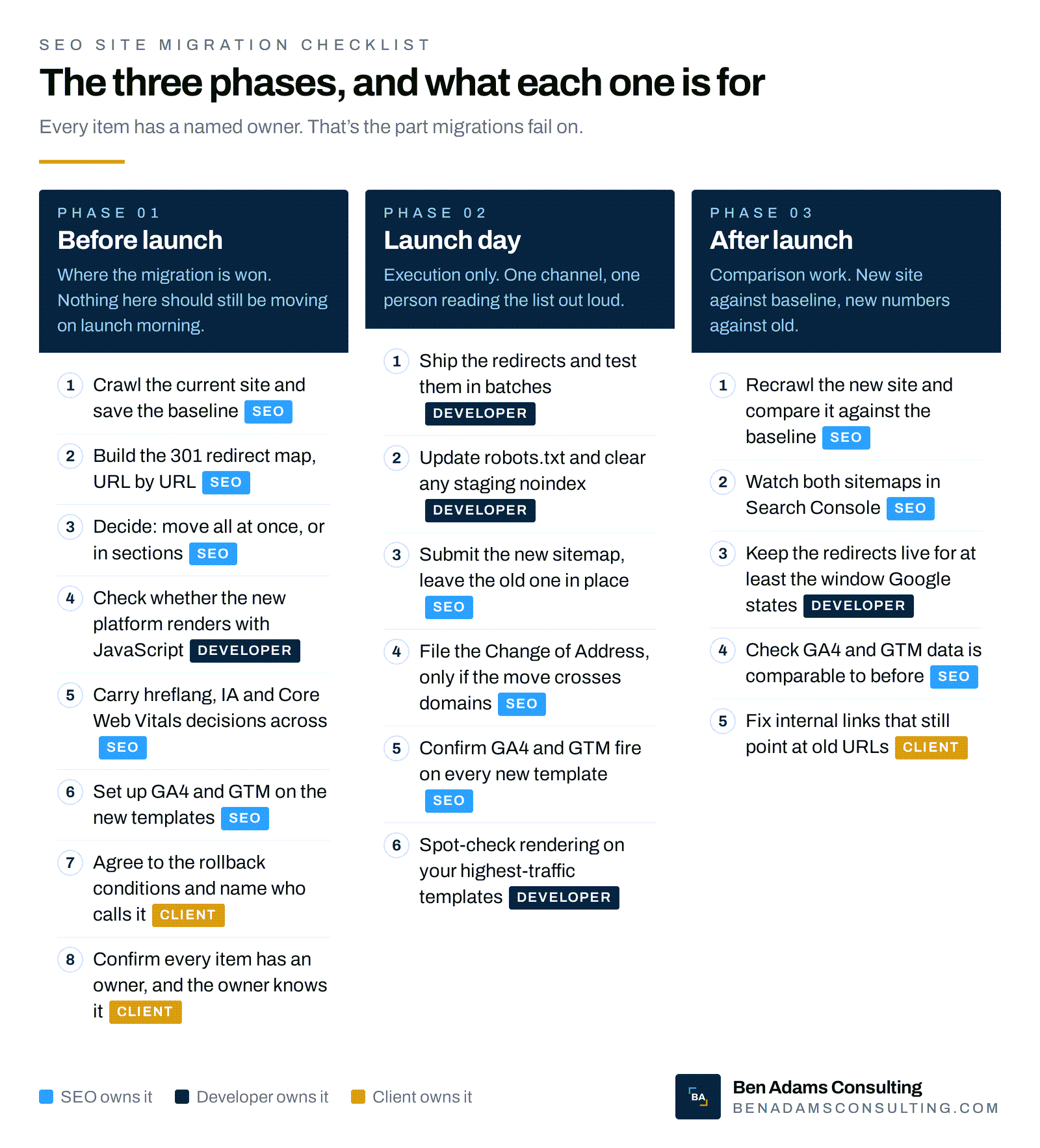
Eight items, in this order, and none of them should still be moving on launch morning. This is where a migration is won. If your website migration checklist comes down to one list you hand your team this week, make it this one, and put a name on every line before you send it.
- Crawl the current site and save the baseline you’ll measure against (SEO)
- Build the 301 redirect map, URL by URL (SEO)
- Decide whether to move everything at once or in sections (SEO)
- Check whether the new platform renders its pages with JavaScript (Developer)
- Carry hreflang, information architecture and Core Web Vitals decisions across (SEO)
- Set up GA4 and Google Tag Manager for the new templates before launch, not after (SEO)
- Agree to the rollback conditions and name the person who makes that call (Client)
- Confirm every item above has an owner, and that the owner knows it (Client)
1. Crawl the current site and save the baseline you’ll measure against (SEO)
Crawl the site as it stands today and keep the file. Every URL with its status code, title, H1, meta description, canonical and internal link count. Export your top pages by organic traffic and conversions from Google Search Console and Google Analytics 4 (GA4) alongside it, because the baseline is how you answer “was this page like that before?” in week two, and you will ask that question.
2. Build the 301 redirect map, URL by URL (SEO)
Map every old URL to one new URL, individually, using 301s. Send each one to its closest equivalent page, never the homepage as a catch-all. Keep the 301 redirect map in a spreadsheet with old URL, new URL, type, status and notes. Have a second person check the rows for your top fifty pages, because those are the ones you can’t get back, and watch for chains while you’re in there, since every extra hop is another place a rule can go stale without anyone noticing. If you audit one thing before launch, audit this.
Redirect mapping is the part of this work I do most with clients, usually alongside information architecture and hreflang. Four of those engagements were Denmark-based, with EMEA and APAC groundwork on top.
3. Decide whether to move everything at once or in sections (SEO)
Google Search Central’s “Site moves with URL changes,” as it reads in September 2026, is direct about this. Small and medium sites should move all URLs at once. Large sites may move in sections, which makes monitoring and troubleshooting easier. For most growth-stage sites that means moving at once. Sections buy you a smaller blast radius and cost you a longer stretch running two structures side by side.
4. Check whether the new platform renders its pages with JavaScript (Developer)
Ask your developer one question. Does the new platform send finished HTML, or build the page in the browser after load? If it’s the second, you have a rendering risk, and it hides well. Pages look perfect to you while the version search engines see is close to empty.
I’ve been on the wrong end of this one. When I consulted for Haymarket Media in 2020 the flagship site for learning management was effectively unindexed and nobody could work out why, because every page looked fine in a browser. It took a fetch with JavaScript disabled to show what the crawler was actually getting, which was close to nothing. Engineering shipped a pre-render fix, and after extensive SEO work on the site leads increased 50% over the year that followed.
Test it on staging. Fetch your key templates with JavaScript disabled and read what comes back. If the content and the links aren’t there, agree the fix with engineering now, whether that’s server-side rendering or pre-rendering.
5. Carry hreflang, information architecture and Core Web Vitals decisions across (SEO)
The new build won’t inherit what you decided on the old site. List your hreflang pairs and check they still resolve once the URLs change, and mark every place where the new navigation differs from the old information architecture. Then measure Core Web Vitals on your staging templates, before a heavier theme makes that decision for you.
6. Set up GA4 and Google Tag Manager for the new templates before launch, not after (SEO/Analytics)
Build the measurement on staging while you can still fix it. The Google Tag Manager (GTM) container on every new template. Existing tags mapped to the new page structures. Conversion events firing on the new forms and thank-you pages, and a GA4 configuration that matches what you have today so the numbers stay comparable. This is the item that gets pushed to the week after launch, which is the week you need clean data most.
7. Agree the rollback conditions and name the person who makes that call (Client)
Decide now, in writing, what would send you back to the old site and who says so. Make the conditions specific enough that someone can check them against a dashboard rather than argue about them. The call sits with the client, usually the marketing leader who owns the number.
8. Confirm every item above has an owner, and that the owner knows it (Client)
Go back through items one to seven and put a name against each. Not a team, a person. Send it to them and get an acknowledgment back, because an owner who hasn’t been told isn’t an owner.
What happens on the day
Launch day is execution.
Six items in this order, everyone in one channel, one person reading the list out loud. If the before-launch work was done properly the day should feel uneventful, which is the goal.
1. Ship the redirects and test them in batches, not all at once (Developer)
Push the rules, then test in batches you can verify. Start with the twenty or thirty URLs carrying your highest traffic and revenue, confirm each returns a single 301 to the intended page, then work down the 301 redirect map in groups. Batching tells you which rule broke instead of leaving you to stare at ten thousand rows. Watch for chains and loops, and for 302s where you meant to enter a 301.
2. Update robots.txt and clear any staging noindex left behind (Developer)
Read the live robots.txt in full the moment the new build is up, then check the templates for noindex tags and X-Robots-Tag headers left over from staging. A staging block that survives launch is one of the fastest ways to lose a site from the index, and one of the easiest to catch. Check the header as well as the file, because an X-Robots-Tag set at the server level will not show up in the page source. Do this before you tell anyone the site is live.
3. Submit the new sitemap and leave the old one in place for now (SEO)
Generate the new XML sitemap, confirm it lists live, indexable URLs with self-referencing canonicals, then submit it in Search Console. Keep the old sitemap submitted too, because it’s how you watch the move happen. The same Google documentation describes what to expect. The old sitemap’s indexed URL count should fall to zero while the new one’s rises, and you can remove the old sitemap once that’s happened.
4. File the Change of Address, but only if the move crosses domains or subdomains (SEO)
Use Google’s Change of Address tool in Search Console only where it applies, which per the same Google documentation is when it moves between domains or subdomains. It isn’t needed for HTTP to HTTPS, for www to non-www on the same domain, or for URL path changes inside one domain. If it does apply, you’ll need both properties verified and the redirects live before you file.
5. Confirm GA4 and Google Tag Manager are firing on every new template (SEO/Analytics)
Open GA4 realtime and walk the site yourself. Homepage, a service page, a blog post, the contact form, the thank-you page. Confirm pageviews are landing and the GTM container is present on each template, then check that conversion events fire with the right parameters, and do the same on the templates that appear in only one section, because those are the ones nobody thinks to test.
6. Spot-check how the pages render for the templates that carry the most traffic (Developer)
Check what a crawler gets, not what your browser shows you.
Use URL inspection in Search Console to read the rendered HTML for your top templates, and confirm the content and the H1 are present, along with the canonical and the internal links. If you found a rendering risk before launch, this is where you prove the fix held.
How long you keep watching after launch
Two different clocks. Google Search Central, in “Site moves with URL changes,” says redirects should be kept, in Google’s wording, “generally at least 1 year,” because that’s the window in which signals transfer to the new URLs.
The redirects stay up for a long time, measured in months rather than weeks. The review is heaviest in the first few days and tapers as the new URLs settle. Site migration SEO after launch is mostly comparison work. New site against baseline, new numbers against old.
1. Recrawl the new site and compare it against the baseline (SEO)
Crawl the new site within a day of launch and put it beside the baseline. Look for URLs that exist in one crawl and not the other. Then status codes that changed. Then the quieter ones: titles and H1s that came across empty, canonicals pointing somewhere unexpected, pages that lost their internal links. Fix in order of the traffic each page carried before the move. Ignore the total number of differences, which will look alarming and mostly will not matter, because twenty broken pages that earned nothing are a job for another day while one broken page that earned a fifth of your organic traffic is this morning.
2. Watch the two sitemaps in Search Console (SEO)
Check both sitemaps a few times a week and track the indexed URL counts as a pair. The old count should fall while the new one rises, which is what the Google documentation describes. If the old count stays flat, go back to your redirects.
3. Keep the redirects live for at least the window Google states (Developer/SEO)
Leave the 301s alone. Put the date and the redirect map’s location in a shared calendar, since a year is long enough for whoever shipped the rules to have moved on.
4. Check that GA4 and Google Tag Manager data is comparable to what you had before (SEO/Analytics)
A week after launch, compare like for like, comparable to what you had before. Sessions and conversions by channel, then the same cut by landing page, against the same window before the move. You’re testing whether a drop is real or a measurement break. If conversions fell while CRM form submissions held steady, the problem is in the tagging, which is much better than the alternative.
5. Fix internal links that still point at old URLs (Client)
Redirects catch these, but they shouldn’t have to. Use your crawl to list every internal link resolving through a redirect, then update the links in the CMS, starting with navigation and footers, then working into the body links in your best content. It’s unglamorous work a content owner can do a section at a time.
If traffic drops, work these in order
Work these in sequence and don’t skip ahead. The order runs cheapest and most likely first, so you stop at the real cause instead of changing five things at once. One check a day, and write down what you found.
Day 1: confirm the drop is real and not a measurement break (SEO/Analytics)
Prove the drop exists outside your analytics. Compare GA4 against Search Console clicks and impressions, and against leads or orders in your CRM. If those look normal while GA4 doesn’t, you have a tagging problem. Check the tag on the affected templates and stop here.
Day 2: test the redirects end to end (SEO/Developer)
Take the top 100 URLs from your baseline and request each one. You want a single 301 to a live, correct page. No chains, no loops, no 404s, no soft 404s landing on an empty page. Pull the Not Found report in Search Console and compare it against the map, because on every migration I’ve worked on this is the day that has found the problem more often than any other.
Day 3: check indexation, robots.txt and any noindex directives (SEO)
Read the reasons for exclusion in the Pages report in Search Console, then re-read robots.txt, check for noindex tags and X-Robots-Tag headers on the affected templates, and confirm each canonical points at itself. One templated directive can take out an entire section while the rest of the site looks healthy. Sort the exclusion reasons by count and start at the top. If a single reason accounts for most of the missing pages, you have found the cause and you can stop looking.
Day 4: check rendering on the affected templates (Developer/SEO)
Run the affected templates through URL inspection and read the rendered HTML. If content, headings or links are missing, the fix belongs with engineering. Compare a template that’s performing fine against one that isn’t, because the difference usually names the cause.
Day 5: compare content and internal links against the baseline crawl (SEO)
Put the two crawls side by side for the pages that lost the most. Check whether the copy came across in full and whether the titles and H1s survived, then count the internal links each page has now. Pages that quietly lost half their content look just like pages that lost rankings for algorithmic reasons, and only the baseline tells them apart. Word count is the fastest signal here. A page that came across at half its old length almost always lost a template region rather than a paragraph, so check one and you have usually explained the rest.
Days 6 and 7: decide whether to fix forward or roll back (Client)
By now you either know the cause or you don’t, and that’s the decision. If you know it and the fix can be applied in days, fix forward and keep the rollback conversation open until the numbers move. If you still can’t explain a large, site-wide drop, take it to the conditions you agreed before launch and use them as written.
When to roll back, and who makes that call
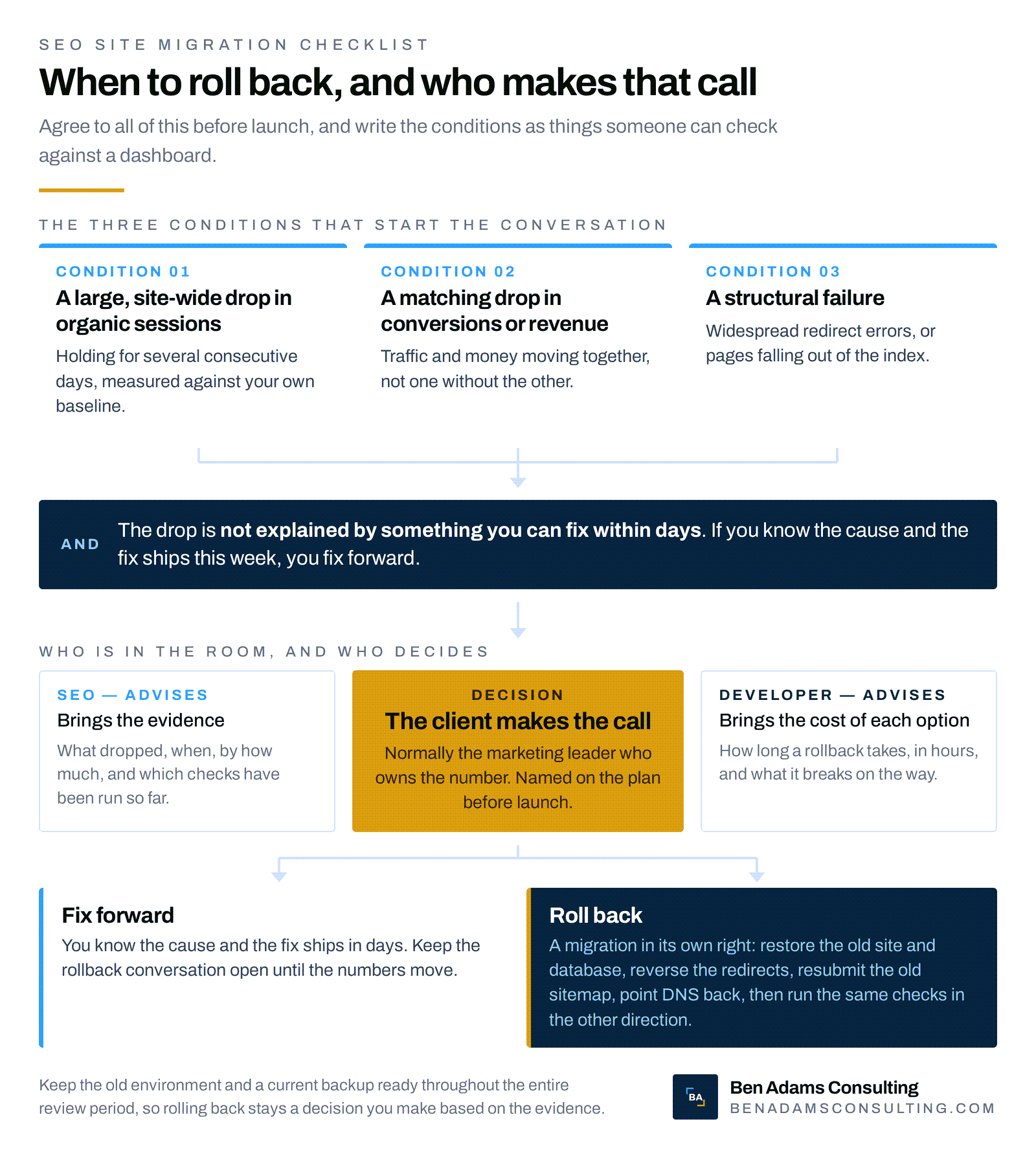
Roll back when the damage is large, site-wide, and not explained by something you can fix within days. The call belongs to the client, normally the marketing leader who owns the number, with the SEO, the analytics lead, and the developer in the room to supply evidence and options.
The conditions that start the conversation
Agree to these before launch and write them as things someone can check. A large drop in organic sessions site-wide, holding for several consecutive days. A matching drop in conversions or revenue. A structural failure such as widespread redirect errors or deindexation. Set the thresholds against your own baseline, since what counts as large depends on your traffic and how seasonal it is.
Who makes the decision, and who needs to be in the room
The client makes the call. The SEO brings the evidence, which means what dropped, when, by how much, and which checks have been run so far. The developer’s job is the cost of each option, including how long a rollback takes and what it breaks on the way. Name that person on the plan before launch, so nobody is hunting for them on day six.
What rolling back actually involves
Rolling back is a migration in its own right, which is why the bar is high. You’ll restore the old site and its database, reverse the redirects, resubmit the old sitemap, point DNS back if the move crossed domains, then run the same checks in the other direction. Keep the old environment and a current backup ready for the entire review period, so rolling back stays a decision you make based on the evidence. Agree to who can authorize the restore and how long it takes, in hours, before you need the answer. A rollback nobody has costed is not really an option, it is a hope.
Questions I get asked
What if only part of the site is moving?
Treat the part that’s moving as a full migration, and the rest as something you have to protect. Build the redirect map for the moving URLs, then crawl the whole site afterward, because the most common damage in a partial move is internal links on pages that didn’t move still pointing at URLs that did. Your baseline crawl should cover the whole site either way. The second thing to watch is your sitemap, which often still lists the old URLs for the section that moved. Submit a corrected one on the day, not the week after.
Who owns the redirect map if we don’t have an SEO?
Somebody on the marketing side, working with the developer. The map is a commercial document as much as a technical one, because every row is a decision about which page best serves someone who wanted the old one. A developer can ship the rules, and generally shouldn’t be the person deciding where a discontinued product page sends its traffic.
How do I test redirects without a crawler license?
For your top hundred URLs, a spreadsheet and an afternoon will do it. Request each URL, record the status code and the final destination, and flag anything that took more than one hop. Free crawlers cover a few hundred URLs, which is enough for the pages that matter on most growth-stage sites. The full map is worth a paid crawl, and the top hundred are worth checking by hand regardless, because those are the ones you’ll be asked about. Screaming Frog SEO Spider is free for up to 500 URLs and arguably the best tool for the job.
What do I keep from the old site, and for how long?
Keep a restorable copy of the old environment and its database, plus your baseline crawl and the redirect map. Hold the environment for as long as you’re actively watching, which is usually the first month or two, and longer if the move crossed domains. Hold the crawl and the map for the full redirect window, because in month eleven, when somebody asks why a URL redirects where it does, the map is the only thing that answers.
Where to start
Take the three lists above, put them in one document, and write a name next to every item before you do anything else. That’s the difference between a website migration checklist and a plan. Then agree your rollback conditions before you start the project.
Tools you’ll need
You can run most of a migration with a handful of tools, and none of them has to be expensive. Here is the short list this checklist assumes.
- A site crawler for the baseline and the post-launch crawls, for example Screaming Frog.
- Google Search Console for sitemaps, URL inspection, and the Pages and Not Found reports.
- Google Analytics 4 and Google Tag Manager for tracking and conversion continuity.
- A spreadsheet for the 301 redirect map, with old URL, new URL, type, status and notes.
- A staging environment and a current backup of the old site, kept for the whole watching period.
- A way to fetch a page with JavaScript disabled, to see what a crawler actually gets.
- Browser inspection tools for reviewing code, debugging and testing page speed using Lighhouse.
If you’ve got a date on the calendar and nobody has written the rollback conditions yet, that’s the work I do.